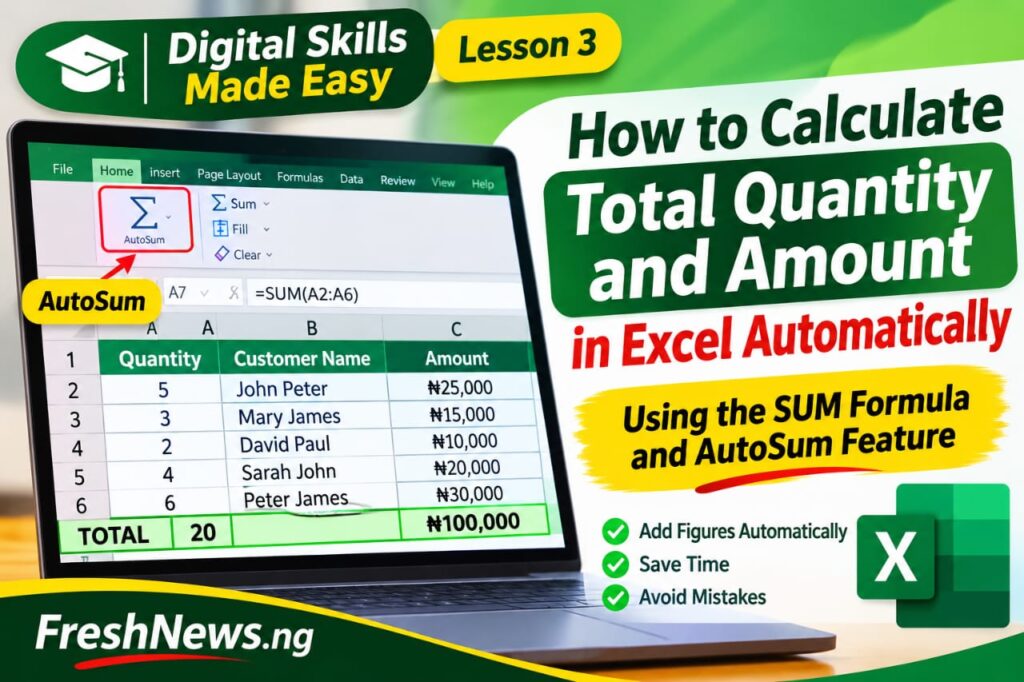
One of the biggest advantages of using Microsoft Excel to keep business records is that it can perform calculations for you.
Imagine recording the sales made in a day. You have the quantity of products sold and the amount received from each customer. At the end of the day, you need to know the total quantity sold and the total amount generated.
You could add the figures manually with a calculator, but Excel offers an easier method. With a simple formula, you can make the spreadsheet calculate the totals automatically.
In this lesson of Digital Skills Made Easy, we will explain how to calculate the total quantity and total amount in an Excel sales record using the SUM formula.
You do not need to be an Excel expert to follow this tutorial.
What You Need
Before you begin, make sure you have:
- A laptop or desktop computer.
- Microsoft Excel installed.
- A sales record containing quantity and amount columns.
You can also use the sales record created in our previous lesson.
Step 1: Open Your Sales Record in Excel
Open Microsoft Excel and locate the sales record you created in the previous lesson.
If you saved the file as Daily Sales Record, open that workbook.
For this example, we will use the following sales information:
Quantity| Customer Name| Customer Address| Sold By| Date| Amount
5| John Peter| Ikeja| Daniel| 08/11/2026| 25,000
3| Mary James| Agege| Daniel| 08/11/2026| 15,000
2| David Paul| Yaba| Grace| 08/11/2026| 10,000
4| Sarah John| Surulere| Grace| 08/11/2026| 20,000
6| Peter James| Oshodi| Daniel| 08/11/2026| 30,000
Our aim is to calculate the total quantity sold and the total amount recorded.
Step 2: Understand the SUM Formula
Excel has a function called SUM. It allows you to add several numbers together without calculating them one after another.
For example, if you want to add 5, 3, 2, 4 and 6, you can use:
“=SUM(5,3,2,4,6)”
Excel will return 20.

However, when working with a spreadsheet, it is usually better to tell Excel which cells contain the numbers you want to add.
That is what we will do next.
Step 3: Calculate the Total Quantity Sold
Look at your sales record. The Quantity heading is in column A, while the five transactions are entered from row 2 to row 6.
Click cell A7, which is directly below the last quantity figure.
Type this formula:
“=SUM(A2:A6)”
Press the Enter key on your keyboard.
Excel will automatically add the figures in cells A2 to A6 and display the result.
For our example, the answer will be 20.
This means that a total of 20 units of products were sold.
Step 4: Calculate the Total Amount
Now, let’s calculate the total amount generated from the five transactions.
The Amount heading is in column F, and the figures are entered from F2 to F6.
Click cell F7 and type:
“=SUM(F2:F6)”
Press Enter.
Excel will add all the amounts recorded in those cells and display the result.
For our example, the total will be ₦100,000.
You have successfully calculated both the total quantity and the total amount without using a calculator.
Step 5: Make Your Total Row Easy to Identify
You can make the total figures stand out by formatting them.
To do this:
- Click cell A7 and type TOTAL in the cell beside it, such as B7.
- Select the cells containing your total figures.
- Go to the Home tab.
- Click the Bold icon (B).
- You can also apply a background colour to the total row.
Your sales record will now be easier to read, especially when you have many transactions.
What Happens When You Add New Sales?
This is where Excel becomes particularly useful.
Suppose you record another transaction in row 7 after already calculating your totals in that same row. You should move your total row down to make room for the new transaction.
For example, if you add new sales up to row 7, your total formulas should be updated to:
Quantity:
“=SUM(A2:A7)”
Amount:
“=SUM(F2:F7)”
The important thing is to make sure your formula covers all the rows containing the figures you want to add.
If you enter more transactions without updating the formula range, Excel may leave out the new figures.
Another Easy Method: Use AutoSum
Excel also provides a feature called AutoSum, which can insert the SUM formula for you.
To use it:
- Click the empty cell directly below the figures you want to add.
- Go to the Home tab.
- Look for the AutoSum symbol (∑).
- Click it.
- Check that Excel has selected the correct range of cells.
- Press Enter.
Excel will calculate the total automatically.
You can use this method for both the Quantity and Amount columns.
Common Mistakes to Avoid
When calculating totals in Excel, beginners sometimes make mistakes that affect their results.
Here are a few things to watch out for:
- Forgetting the equals sign: Every Excel formula must begin with an equals sign. For example, write “=SUM(A2:A6)”, not “SUM(A2:A6)”.
- Selecting the wrong cells: Make sure the formula covers all the figures you want to add.
- Entering figures as text: Excel may not calculate some values correctly if they are stored as text rather than numbers.
- Replacing the formula with a number: If you type a number over the cell containing your formula, Excel will no longer calculate that total automatically.
Practise What You Have Learned
Open your sales record and try this exercise:
- Enter five different transactions.
- Calculate the total quantity using “=SUM(A2:A6)”.
- Calculate the total amount using “=SUM(F2:F6)”.
- Add another transaction and update both formulas to include the new row.
- Check whether the totals are correct.
If you complete this exercise, you have learned one of the most useful basic functions in Microsoft Excel.
Conclusion
The SUM formula is a simple but powerful Excel feature that can make keeping business records much easier.
Instead of adding figures manually every time, you can allow Excel to calculate your total quantity and amount in seconds.
As you continue learning, you will discover more Excel features that can help you organise information, reduce calculation errors and manage records more efficiently.
Keep practising. The more you use Excel, the more comfortable you will become with it.
Submit a Press Release | Advertise With Fresh News | Contact Us